Computer keyboard

A key being pressed on a computer keyboard.
In
computing, a
keyboard is a
typewriter-style device, which uses an arrangement of buttons or
keys, to act as mechanical levers or electronic switches. Following the decline of
punch cards and
paper tape, interaction via
teleprinter-style keyboards became the main
input device for computers.
A keyboard typically has characters
engraved or
printed on the keys and each press of a key typically corresponds to a single written
symbol.
However, to produce some symbols requires pressing and holding several
keys simultaneously or in sequence. While most keyboard keys produce
letters,
numbers or signs (
characters), other keys or simultaneous key presses can produce actions or execute computer commands.
Despite the development of alternative input devices, such as the
mouse,
touchscreen,
pen devices,
character recognition and
voice recognition, the keyboard remains the most commonly used and most versatile device used for direct (human) input into computers.
[citation needed]
In normal usage, the keyboard is used to type text and numbers into a
word processor,
text editor
or other programs. In a modern computer, the interpretation of key
presses is generally left to the software. A computer keyboard
distinguishes each physical key from every other and reports all key
presses to the controlling software. Keyboards are also used for
computer gaming, either with regular keyboards or by using keyboards
with special gaming features, which can expedite frequently used
keystroke combinations. A keyboard is also used to give commands to the
operating system of a computer, such as
Windows'
Control-Alt-Delete combination, which brings up a task window or shuts down the machine. A
command-line interface is a type of
user interface operated entirely through a keyboard, or another device performing the function of one.
History
While typewriters are the definitive ancestor of all key-based text
entry devices, the computer keyboard as a device for electromechanical
data entry and communication derives largely from the utility of two
devices: teleprinters (or teletypes) and
keypunches. It was through such devices that modern computer keyboards inherited their layouts.
As early as the 1870s, teleprinter-like devices were used to simultaneously type and transmit
stock market text data from the keyboard across telegraph lines to
stock ticker machines to be immediately copied and displayed onto
ticker tape. The teleprinter, in its more contemporary form, was developed from 1903 to 1910 by American mechanical engineer
Charles Krum and his son
Howard, with early contributions by electrical engineer
Frank Pearne. Earlier models were developed separately by individuals such as
Royal Earl House and
Frederick G. Creed.
Earlier,
Herman Hollerith
developed the first keypunch devices, which soon evolved to include
keys for text and number entry akin to normal typewriters by the 1930s.
The keyboard on the teleprinter played a strong role in
point-to-point and point-to-multipoint communication for most of the
20th century, while the keyboard on the keypunch device played a strong
role in data entry and storage for just as long. The development of the
earliest computers incorporated electric typewriter keyboards: the
development of the
ENIAC computer incorporated a keypunch device as both the input and paper-based output device, while the
BINAC
computer also made use of an electromechanically controlled typewriter
for both data entry onto magnetic tape (instead of paper) and data
output.
From the 1940s until the late 1960s, typewriters were the main means
of data entry and output for computing, becoming integrated into what
were known as
computer terminals.
Because of the limitations of terminals based upon printed text in
comparison to the growth in data storage, processing and transmission, a
general move toward video-based computer terminals was affected by the
1970s, starting with the
Datapoint 3300 in 1967.
The keyboard remained the primary, most integrated computer
peripheral well into the era of personal computing until the
introduction of the mouse as a consumer device in 1984. By this time,
text-only user interfaces with sparse graphics gave way to
comparatively graphics-rich icons on screen.
However, keyboards remain central to human-computer interaction to the
present, even as mobile personal computing devices such as
smartphones and
tablets adapt the keyboard as an optional virtual, touchscreen-based means of data entry.
Keyboard types
One factor determining the size of a keyboard is the presence of
duplicate keys, such as a separate numeric keyboard, for convenience.
Further the keyboard size depends on the extent to which a system is
used where a single action is produced by a combination of subsequent or
simultaneous keystrokes (with modifier keys, see below), or multiple
pressing of a single key. A keyboard with few keys is called a
keypad. See also
text entry interface.
Another factor determining the size of a keyboard is the size and
spacing of the keys. Reduction is limited by the practical consideration
that the keys must be large enough to be easily pressed by fingers.
Alternatively a tool is used for pressing small keys.
Standard
Standard "full-travel" alphanumeric keyboards have keys that are on
three-quarter inch centers (0.750 inches, 19.05 mm), and have a key
travel of at least 0.150 inches (3.81 mm). Desktop computer keyboards,
such as the 101-key US traditional keyboards or the 104-key Windows
keyboards, include alphabetic characters,
punctuation symbols, numbers and a variety of
function keys.
The internationally common 102/105 key keyboards have a smaller left
shift key and an additional key with some more symbols between that and
the letter to its right (usually Z or Y). Also the
enter key is usually shaped differently.
[vague][1] Computer keyboards are similar to electric-typewriter keyboards but contain additional keys.
Laptop-size
Keyboards on
laptops and
notebook computers
usually have a shorter travel distance for the keystroke and a reduced
set of keys. They may not have a numerical keypad, and the function keys
may be placed in locations that differ from their placement on a
standard, full-sized keyboard.
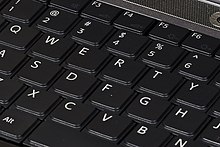
The keyboards on laptops usually have a shorter travel distance and a reduced set of keys.
Thumb-sized
Smaller external keyboards have been introduced for devices without a built-in keyboard, such as
PDAs, and smartphones. Small keyboards are also useful where there is a limited workspace.
A
chorded keyboard
allows users to press several keys simultaneously. For example, the
GKOS keyboard has been designed for small wireless devices. Other
two-handed alternatives more akin to a
game controller, such as the
AlphaGrip, are also used to input data and text.
A
thumb keyboard (thumbboard) is used in some personal digital assistants such as the
Palm Treo and
BlackBerry and some
Ultra-Mobile PCs such as the
OQO.
Numeric keyboards contain only numbers, mathematical symbols for
addition, subtraction, multiplication, and division, a decimal point,
and several function keys. They are often used to facilitate data entry
with smaller keyboards that do not have a numeric keypad, commonly those
of laptop computers. These keys are collectively known as a numeric
pad, numeric keys, or a numeric keypad, and it can consist of the
following types of keys:
- arithmetic operators such as +, -, *, /
- numeric digits 0–9
- cursor arrow keys
- navigation keys such as Home, End, PgUp, PgDown, etc.
- Num Lock button, used to enable or disable the numeric pad
- enter key
Non-standard layout and special-use types
Chorded
While other keyboards generally associate one action with each key,
chorded keyboards associate actions with combinations of key presses.
Since there are many combinations available, chorded keyboards can
effectively produce more actions on a board with fewer keys. Court
reporters'
stenotype
machines use chorded keyboards to enable them to enter text much faster
by typing a syllable with each stroke instead of one letter at a time.
The fastest typists (as of 2007) use a stenograph, a kind of chorded
keyboard used by most court reporters and closed-caption reporters. Some
chorded keyboards are also made for use in situations where fewer keys
are preferable, such as on devices that can be used with only one hand,
and on small mobile devices that don't have room for larger keyboards.
Chorded keyboards are less desirable in many cases because it usually
takes practice and memorization of the combinations to become
proficient.
Software
Software keyboards
or on-screen keyboards often take the form of computer programs that
display an image of a keyboard on the screen. Another input device such
as a mouse or a touchscreen can be used to operate each virtual key to
enter text. Software keyboards have become very popular in touchscreen
enabled cell phones, due to the additional cost and space requirements
of other types of hardware keyboards. Microsoft Windows, Mac OS X, and
some varieties of Linux include on-screen keyboards that can be
controlled with the mouse. In software keyboards, the mouse has to be
maneuvered onto the on-screen letters given by the software. On the
click of a letter, the software writes the respective letter on the
respective spot.
Projection (as by laser)
Projection keyboards
project an image of keys, usually with a laser, onto a flat surface.
The device then uses a camera or infrared sensor to "watch" where the
user's fingers move, and will count a key as being pressed when it
"sees" the user's finger touch the projected image. Projection keyboards
can simulate a full size keyboard from a very small projector. Because
the "keys" are simply projected images, they cannot be felt when
pressed. Users of projected keyboards often experience increased
discomfort in their fingertips because of the lack of "give" when
typing. A flat, non-reflective surface is also required for the keys to
be projected. Most projection keyboards are made for use with
PDAs and smartphones due to their small form factor.
Optical keyboard technology
Also known as photo-optical keyboard, light responsive keyboard,
photo-electric keyboard and optical key actuation detection technology.
An optical keyboard technology utilizes
light emitting devices and
photo sensors to optically detect actuated keys. Most commonly the emitters and sensors are located in the perimeter, mounted on a small
PCB. The
light
is directed from side to side of the keyboard interior and it can only
be blocked by the actuated keys. Most optical keyboards require at least
2 beams (most commonly vertical beam and horizontal beam) to determine
the actuated key. Some optical keyboards use a special key structure
that blocks the light in a certain pattern, allowing only one beam per
row of keys (most commonly horizontal beam).
Layout
Alphabetic

The 104-key PC
US English QWERTY keyboard layout evolved from the standard
typewriter keyboard, with extra keys for computing.

The
Dvorak Simplified Keyboard
layout arranges keys so that frequently used keys are easiest to press,
which reduces muscle fatigue when typing common English.
There are a number of different arrangements of alphabetic, numeric, and punctuation symbols on keys. These different
keyboard layouts
arise mainly because different people need easy access to different
symbols, either because they are inputting text in different languages,
or because they need a specialized layout for mathematics, accounting,
computer programming, or other purposes. The
United States keyboard layout is used as default in the currently most popular operating systems: Windows,
[2] Mac OS X[3] and
Linux.
[4][5]
The common QWERTY-based layout was designed early in the era of
mechanical typewriters, so its ergonomics were compromised to allow for
the mechanical limitations of the typewriter.
As the letter-keys were attached to levers that needed to move freely, inventor
Christopher Sholes
developed the QWERTY layout to reduce the likelihood of jamming. With
the advent of computers, lever jams are no longer an issue, but
nevertheless, QWERTY layouts were adopted for electronic keyboards
because they were widely used. Alternative layouts such as the
Dvorak Simplified Keyboard are not in widespread use.
The QWERTZ layout is widely used in Germany and much of Central
Europe. The main difference between it and QWERTY is that Y and Z are
swapped, and most special characters such as brackets are replaced by
diacritical characters.
Another situation takes place with "national" layouts. Keyboards
designed for typing in Spanish have some characters shifted, to release
the space for Ñ ñ; similarly, those for French and other European
languages may have a special key for the character Ç ç. The
AZERTY
layout is used in France, Belgium and some neighbouring countries. It
differs from the QWERTY layout in that the A and Q are swapped, the Z
and W are swapped, and the M is moved from the right of N to the right
of L (where colon/semicolon is on a US keyboard). The digits 0 to 9 are
on the same keys, but to be typed the shift key must be pressed. The
unshifted positions are used for accented characters.
Keyboards in many parts of
Asia
may have special keys to switch between the Latin character set and a
completely different typing system. Japanese layout keyboards can be
switched between various Japanese input methods and the Latin alphabet
by signaling the operating system's input interpreter of the change, and
some operating systems (namely the Windows family) interpret the
character "\" as "¥" for display purposes without changing the bytecode
which has led some keyboard makers to mark "\" as "¥" or both. In the
Arab world, keyboards can often be switched between Arabic and Latin
characters.
In bilingual regions of Canada and in the French-speaking province of
Québec, keyboards can often be switched between an English and a
French-language keyboard; while both keyboards share the same QWERTY
alphabetic layout, the French-language keyboard enables the user to type
accented vowels such as "é" or "à" with a single keystroke. Using
keyboards for other languages leads to a conflict: the image on the key
does not correspond to the character. In such cases, each new language
may require an additional label on the keys, because the standard
keyboard layouts do not share even similar characters of different
languages (see the example in the figure above).
Key types
Alphanumeric
Alphabetical, numeric, and punctuation keys are used in the same
fashion as a typewriter keyboard to enter their respective symbol into a
word processing program, text editor, data spreadsheet, or other
program. Many of these keys will produce different symbols when modifier
keys or shift keys are pressed. The alphabetic characters become
uppercase when the shift key or Caps Lock key is depressed. The numeric
characters become symbols or punctuation marks when the shift key is
depressed. The alphabetical, numeric, and punctuation keys can also have
other functions when they are pressed at the same time as some modifier
keys.
The
Space bar
is a horizontal bar in the lowermost row, which is significantly wider
than other keys. Like the alphanumeric characters, it is also descended
from the mechanical typewriter. Its main purpose is to enter the space
between words during typing. It is large enough so that a thumb from
either hand can use it easily. Depending on the operating system, when
the space bar is used with a modifier key such as the control key, it
may have functions such as resizing or closing the current window,
half-spacing, or backspacing. In computer games and other applications
the key has myriad uses in addition to its normal purpose in typing,
such as jumping and adding marks to check boxes. In certain programs for
playback of digital video, the space bar is used for pausing and
resuming the playback.
Modifiers
Modifier keys
are special keys that modify the normal action of another key, when the
two are pressed in combination. For example, <Alt> + <F4>
in Microsoft Windows will close the program in an
active window.
In contrast, pressing just <F4> will probably do nothing, unless
assigned a specific function in a particular program. By themselves,
modifier keys usually do nothing.
The most widely used modifier keys include the
Control key,
Shift key and the
Alt key. The
AltGr key
is used to access additional symbols for keys that have three symbols
printed on them. On the Macintosh and Apple keyboards, the modifier keys
are the
Option key and
Command key, respectively. On MIT computer keyboards, the
Meta key is used as a modifier and for Windows keyboards, there is a
Windows key. Compact keyboard layouts often use a
Fn key. "
Dead keys" allow placement of a
diacritic mark, such as an accent, on the following letter (e.g., the
Compose key).
The Enter/Return key typically causes a command line, window form or
dialog box to operate its default function, which is typically to finish
an "entry" and begin the desired process. In word processing
applications, pressing the enter key ends a paragraph and starts a new
one.
Navigation and typing modes
Navigation keys include a variety of keys which move the cursor to different positions on the screen.
Arrow keys are programmed to move the cursor in a specified direction; page scroll keys, such as the
Page Up and Page Down keys, scroll the page up and down. The
Home key is used to return the cursor to the beginning of the line where the cursor is located; the
End key puts the cursor at the end of the line. The
Tab key advances the cursor to the next tab stop.
The
Insert key
is mainly used to switch between overtype mode, in which the cursor
overwrites any text that is present on and after its current location,
and insert mode, where the cursor inserts a character at its current
position, forcing all characters past it one position further. The
Delete key
discards the character ahead of the cursor's position, moving all
following characters one position "back" towards the freed place. On
many notebook computer keyboards the key labeled Delete (sometimes
Delete and Backspace are printed on the same key) serves the same
purpose as a Backspace key. The
Backspace key deletes the preceding character.
Lock keys
lock part of a keyboard, depending on the settings selected. The lock
keys are scattered around the keyboard. Most styles of keyboards have
three LEDs indicating which locks are enabled, in the upper right corner
above the numeric pad. The lock keys include
Scroll lock,
Num lock (which allows the use of the numeric keypad), and
Caps lock.
System commands
The
SysRq and
Print screen
commands often share the same key. SysRq was used in earlier computers
as a "panic" button to recover from crashes (and it is still used in
this sense to some extent by the
Linux kernel; see
Magic SysRq key).
The Print screen command used to capture the entire screen and send it
to the printer, but in the present it usually puts a screenshot in the
clipboard. The
Break key/Pause key
no longer has a well-defined purpose. Its origins go back to
teleprinter users, who wanted a key that would temporarily interrupt the
communications line. The Break key can be used by software in several
different ways, such as to switch between multiple login sessions, to
terminate a program, or to interrupt a modem connection.
In programming, especially old DOS-style BASIC, Pascal and C, Break
is used (in conjunction with Ctrl) to stop program execution. In
addition to this, Linux and variants, as well as many DOS programs,
treat this combination the same as Ctrl+C. On modern keyboards, the
break key is usually labeled Pause/Break. In most Windows environments,
the key combination Windows key+Pause brings up the system properties.
The
Escape key
(often abbreviated Esc) is used to initiate an escape sequence. As most
computer users no longer are concerned with the details of controlling
their computer's peripherals, the task for which the escape sequences
were originally designed, the escape key was appropriated by application
programmers, most often to "escape" or back out of a mistaken command.
This use continues today in Microsoft Windows's use of escape as a
shortcut in dialog boxes for No, Quit, Exit, Cancel, or Abort.
A common application today of the Esc key is as a shortcut key for
the Stop button in many web browsers. On machines running Microsoft
Windows, prior to the implementation of the Windows key on keyboards,
the typical practice for invoking the "start" button was to hold down
the control key and press escape. This process still works in Windows
2000, XP, Vista, 7, and 8.
The
Menu key
or Application key is a key found on Windows-oriented computer
keyboards. It is used to launch a context menu with the keyboard rather
than with the usual right mouse button. The key's symbol is a small icon
depicting a cursor hovering above a menu. This key was created at the
same time as the Windows key. This key is normally used when the right
mouse button is not present on the mouse. Some Windows public terminals
do not have a Menu key on their keyboard to prevent users from
right-clicking (however, in many windows applications, a similar
functionality can be invoked with the Shift+F10
keyboard shortcut).
Miscellaneous

Multimedia buttons on some keyboards give quick access to the Internet or control the volume of the speakers.
Many, but not all, computer keyboards have a
numeric keypad
to the right of the alphabetic keyboard which contains numbers, basic
mathematical symbols (e.g., addition, subtraction, etc.), and a few
function keys. On
Japanese/Korean keyboards, there may be
Language input keys. Some keyboards have
power management keys (e.g., power key, sleep key and wake key); Internet keys to access a web browser or
E-mail;
and/or multimedia keys, such as volume controls or keys that can be
programmed by the user to launch a specified software or command like
launching a game or minimize all windows.
Multiple layouts
It is possible to install multiple keyboard layouts within an
operating system and switch between them, either through features
implemented within the OS, or through an external application. Microsoft
Windows,
[6] Linux,
[7] and Mac
[8] provide support to add keyboard layouts and choose from them.
Layout changing software
The character code produced by any key press is determined by the keyboard driver software. A key press generates a
scancode
which is interpreted as an alphanumeric character or control function.
Depending on operating systems, various application programs are
available to create, add and switch among keyboard layouts. Many
programs are available, some of which are language specific.
The arrangement of symbols of specific language can be customized. An
existing keyboard layout can be edited, and a new layout can be created
using this type of software.
For example,
Ukelele for Mac, The Microsoft Keyboard Layout Creator
[9] and open-source
Avro Keyboard
for Windows provide the ability to customize the keyboard layout as
desired. Other programs with similar functions include The Microsoft
Keyboard Layout Creator,
[10]
Illumination
Keyboards and keypads may be illuminated from inside, especially on
equipment for mobile use. Illumination facilitates the use of the
keyboard or keypad in dark environments. Some gaming keyboards have
lighted keys, to make it easier for gamers to find command keys while
playing in a dark room. Some computers may have small LED lights in a
few important function keys, to remind users that the function is
activated (see photo).

Keys with integrated LED indicator lights
Technology
Key switches
In the first electronic keyboards in the early 1970s, the key
switches were individual switches inserted into holes in metal frames.
These keyboards cost from 80–120
US dollars and were used in mainframe data terminals. The most popular switch types were
reed switches (contacts enclosed in a vacuum in a glass capsule, affected by a magnet mounted on the switch plunger – from Clare-Pendar
[citation needed]
In the mid-1970s, lower-cost direct-contact key switches were
introduced, but their life in switch cycles was much shorter (rated ten
million cycles) because they were open to the environment. This became
more acceptable, however, for use in computer terminals at the time,
which began to see increasingly shorter model lifespans as they
advanced.
In 1978, Key Tronic Corporation introduced keyboards with
capacitive-based switches, one of the first keyboard technologies to not
use self-contained switches. There was simply a sponge pad with a
conductive-coated Mylar plastic sheet on the switch plunger, and two
half-moon trace patterns on the printed circuit board below. As the key
was depressed, the capacitance between the plunger pad and the patterns
on the PCB below changed, which was detected by integrated circuits
(IC). These keyboards were claimed to have the same reliability as the
other "solid-state switch" keyboards such as inductive and Hall-Effect,
but competitive with direct-contact keyboards. Prices of $60 for
keyboards were achieved and Key Tronic rapidly became the largest
independent keyboard manufacturer.
Meanwhile,
IBM made their own keyboards, using their own patented technology: Keys on older IBM keyboards were made with a
"buckling spring"
mechanism, in which a coil spring under the key buckles under pressure
from the user's finger, triggering a hammer that presses two plastic
sheets (membranes) with conductive traces together, completing a
circuit. This produces a clicking sound, and gives physical feedback for
the typist indicating that the key has been depressed.
[11]
The first electronic keyboards had a typewriter key travel distance
of 0.187 inches (4.75 mm), keytops were a half-inch (12.7 mm) high, and
keyboards were about two inches (5 cm) thick. Over time, less key travel
was accepted in the market, finally landing on 0.110 inches (2.79 mm).
Coincident with this, Key Tronic was the first company to introduce a
keyboard which was only about one inch thick. And now keyboards measure
only about a half-inch thick.
Keytops are an important element of keyboards. In the beginning,
keyboard keytops had a "dish shape" on top, like typewriters before
them. Keyboard key legends must be extremely durable over tens of
millions of depressions, since they are subjected to extreme mechanical
wear from fingers and fingernails, and subject to hand oils and creams,
so engraving and filling key legends with paint, as was done previously
for individual switches, was never acceptable. So, for the first
electronic keyboards, the key legends were produced by
two-shot (or double-shot, or two-color) molding,
where either the key shell or the inside of the key with the key legend
was molded first, and then the other color molded second. But, to save
cost, other methods were explored, such as
sublimation printing and
laser engraving, both methods which could be used to print a whole keyboard at the same time.
Initially, sublimation printing, where a special ink is printed onto
the keycap surface and the application of heat causes the ink molecules
to penetrate and commingle with the plastic modules, had a problem
because finger oils caused the molecules to disperse, but then a
necessarily very hard clear coating was applied to prevent this.
Coincident with sublimation printing, which was first used in high
volume by IBM on their keyboards, was the introduction by IBM of
single-curved-dish keycaps to facilitate quality printing of key legends
by having a consistently curved surface instead of a dish. But one
problem with sublimation or laser printing was that the processes took
too long and only dark legends could be printed on light-colored keys.
On another note, IBM was unique in using separate shells, or "
keycaps",
on keytop bases.This might have made their manufacturing of different
keyboard layouts more flexible, but the reason for doing this was that
the plastic material that needed to be used for sublimation printing was
different from standard ABS keytop plastic material.
Three final mechanical technologies brought keyboards to where they are today, driving the cost well under $10:
- "Monoblock" keyboard designs were developed where individual switch
housings were eliminated and a one-piece "monoblock" housing used
instead. This was possible because of molding techniques that could
provide very tight tolerances for the switch-plunger holes and guides
across the width of the keyboard so that the key plunger-to-housing
clearances were not too tight or too loose, either of which could cause
the keys to bind.
- The use of contact-switch membrane sheets under the monoblock. This technology came from flat-panel switch membranes,
where the switch contacts are printed inside of a top and bottom layer,
with a spacer layer in between, so that when pressure is applied to the
area above, a direct electrical contact is made. The membrane layers
can be printed by very-high volume, low-cost "reel-to-reel" printing
machines, with each keyboard membrane cut and punched out afterwards.
Plastic materials played a very important part in the development and
progress of electronic keyboards. Until "monoblocks" came along, GE's
"self-lubricating"
Delrin
was the only plastic material for keyboard switch plungers that could
withstand the beating over tens of millions of cycles of lifetime use.
Greasing or oiling switch plungers was undesirable because it would
attract
dirt
over time which would eventually affect the feel and even bind the key
switches (although keyboard manufacturers would sometimes sneak this
into their keyboards, especially if they could not control the
tolerances of the key plungers and housings well enough to have a smooth
key depression feel or prevent binding). But Delrin was only available
in black and white, and was not suitable for keytops (too soft), so
keytops use
ABS
plastic. However, as plastic molding advanced in maintaining tight
tolerances, and as key travel length reduced from 0.187-inch to
0.110-inch (4.75 mm to 2.79 mm), single-part keytop/plungers could be
made of ABS, with the keyboard monolocks also made of ABS.
Control processor
Computer keyboards include control circuitry to convert key presses
into key codes (usually scancodes) that the computer's electronics can
understand. The key switches are connected via the printed circuit board
in an electrical X-Y matrix where a voltage is provided sequentially to
the Y lines and, when a key is depressed, detected sequentially by
scanning the X lines.
The first computer keyboards were for mainframe computer data
terminals and used discrete electronic parts. The first keyboard
microprocessor was introduced in 1972 by General Instruments, but
keyboards have been using the single-chip
8048 microcontroller
variant since it became available in 1978. The keyboard switch matrix
is wired to its inputs, it converts the keystrokes to key codes, and,
for a detached keyboard, sends the codes down a serial cable (the
keyboard cord) to the main processor on the computer motherboard. This
serial keyboard cable communication is only bi-directional to the extent
that the computer's electronics controls the illumination of the caps
lock, num lock and scroll lock lights.
One test for whether the computer has crashed is pressing the caps lock key. The keyboard sends the key code to the
keyboard driver
running in the main computer; if the main computer is operating, it
commands the light to turn on. All the other indicator lights work in a
similar way. The keyboard driver also tracks the Shift, alt and control
state of the keyboard.
Some lower-quality keyboards have multiple or false key entries due
to inadequate electrical designs. These are caused by inadequate
keyswitch "debouncing" or inadequate keyswitch matrix layout that don't
allow multiple keys to be depressed at the same time, both circumstances
which are explained below:
When pressing a keyboard key, the key contacts may "bounce" against
each other for several milliseconds before they settle into firm
contact. When released, they bounce some more until they revert to the
uncontacted state. If the computer were watching for each pulse, it
would see many keystrokes for what the user thought was just one. To
resolve this problem, the processor in a keyboard (or computer) "
debounces" the keystrokes, by aggregating them across time to produce one "confirmed" keystroke.
Some low-quality keyboards also suffer problems with
rollover
(that is, when multiple keys pressed at the same time, or when keys are
pressed so fast that multiple keys are down within the same
milliseconds). Early "solid-state" keyswitch keyboards did not have this
problem because the keyswitches are electrically isolated from each
other, and early "direct-contact" keyswitch keyboards avoided this
problem by having isolation diodes for every keyswitch. These early
keyboards had "n-key" rollover, which means any number of keys can be
depressed and the keyboard will still recognize the next key depressed.
But when three keys are pressed (electrically closed) at the same time
in a "direct contact" keyswitch matrix that doesn't have isolation
diodes, the keyboard electronics can see a fourth "phantom" key which is
the intersection of the X and Y lines of the three keys. Some types of
keyboard circuitry will register a maximum number of keys at one time.
"Three-key" rollover, also called "phantom key blocking" or "phantom key
lockout", will only register three keys and ignore all others until one
of the three keys is lifted. This is undesirable, especially for fast
typing (hitting new keys before the fingers can release previous keys),
and
games (designed for multiple key presses).
As direct-contact membrane keyboards became popular, the available
rollover of keys was optimized by analyzing the most common key
sequences and placing these keys so that they do not potentially produce
phantom keys in the electrical key matrix (for example, simply placing
three or four keys that might be depressed simultaneously on the same X
or same Y line, so that a phantom key intersection/short cannot happen),
so that blocking a third key usually isn't a problem. But lower-quality
keyboard designs and unknowledgeable engineers may not know these
tricks, and it can still be a problem in games due to wildly different
or configurable layouts in different games.
Connection types
There are several ways of connecting a keyboard to a
system unit (more precisely, to its
keyboard controller) using cables, including the standard
AT connector commonly found on motherboards, which was eventually replaced by the
PS/2 and the
USB connection. Prior to the iMac line of systems, Apple used the proprietary
Apple Desktop Bus for its keyboard connector.
Wireless
keyboards have become popular for their increased user freedom. A
wireless keyboard often includes a required combination transmitter and
receiver unit that attaches to the computer's keyboard port. The
wireless aspect is achieved either by
radio frequency (RF) or by
infrared
(IR) signals sent and received from both the keyboard and the unit
attached to the computer. A wireless keyboard may use an industry
standard RF, called
Bluetooth.
With Bluetooth, the transceiver may be built into the computer.
However, a wireless keyboard needs batteries to work and may pose a
security problem due to the risk of data "
eavesdropping" by hackers. Wireless
solar keyboards charge their batteries from small
solar panels using
sunlight or standard artificial lighting. An early example of a consumer wireless keyboard is that of the
Olivetti Envision.
Alternative text-entering methods

An on-screen keyboard controlled with the mouse can be used by users with limited mobility.
Optical character recognition
(OCR) is preferable to rekeying for converting existing text that is
already written down but not in machine-readable format (for example, a
Linotype-composed
book from the 1940s). In other words, to convert the text from an image
to editable text (that is, a string of character codes), a person could
re-type it, or a computer could look at the image and deduce what each
character is. OCR technology has already reached an impressive state
(for example,
Google Book Search) and promises more for the future.
Speech recognition converts speech into machine-readable text (that
is, a string of character codes). This technology has also reached an
advanced state and is implemented in
various software products.
For certain uses (e.g., transcription of medical or legal dictation;
journalism; writing essays or novels) it is starting to replace the
keyboard; however, it does not threaten to replace keyboards entirely
anytime soon. It can, however, interpret commands (for example, "close
window" or "undo word") in addition to text. Therefore, it has
theoretical potential to replace keyboards entirely (whereas OCR
replaces them only for a certain kind of task).
Pointing devices
can be used to enter text or characters in contexts where using a
physical keyboard would be inappropriate or impossible. These
accessories typically present characters on a display, in a layout that
provides fast access to the more frequently used characters or character
combinations. Popular examples of this kind of input are
Graffiti,
Dasher and on-screen
virtual keyboards.
Other issues
Keystroke logging
Keystroke logging
(often called keylogging) is a method of capturing and recording user
keystrokes. While it is used legally to measure employee productivity on
certain clerical tasks, or by law enforcement agencies to find out
about illegal activities, it is also used by hackers for various illegal
or malicious acts. Hackers use keyloggers as a means to obtain
passwords or encryption keys and thus bypass other security measures.
Keystroke logging can be achieved by both hardware and software
means. Hardware key loggers are attached to the keyboard cable or
installed inside standard keyboards. Software keyloggers work on the
target computer's operating system and gain unauthorized access to the
hardware, hook into the keyboard with functions provided by the OS, or
use remote access software to transmit recorded data out of the target
computer to a remote location. Some hackers also use wireless keylogger
sniffers to collect packets of data being transferred from a wireless
keyboard and its receiver, and then they crack the encryption key being
used to secure wireless communications between the two devices.
Anti-spyware
applications are able to detect many keyloggers and cleanse them.
Responsible vendors of monitoring software support detection by
anti-spyware programs, thus preventing abuse of the software. Enabling a
firewall
does not stop keyloggers per se, but can possibly prevent transmission
of the logged material over the net if properly configured.
Network monitors
(also known as reverse-firewalls) can be used to alert the user
whenever an application attempts to make a network connection. This
gives the user the chance to prevent the keylogger from "
phoning home"
with his or her typed information. Automatic form-filling programs can
prevent keylogging entirely by not using the keyboard at all. Most
keyloggers can be fooled by alternating between typing the login
credentials and typing characters somewhere else in the focus window.
[12]
Physical injury
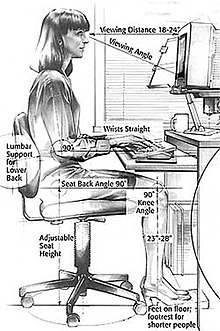
Proper ergonomic design of computer keyboard desks is necessary to
prevent repetitive strain injuries, which can develop over time and can
lead to long-term disability.
[13]
The use of any keyboard may cause serious injury (that is,
carpal tunnel syndrome or other
repetitive strain injury)
to hands, wrists, arms, neck or back. The risks of injuries can be
reduced by taking frequent short breaks to get up and walk around a
couple of times every hour. As well, users should vary tasks throughout
the day, to avoid overuse of the hands and wrists. When inputting at the
keyboard, a person should keep the shoulders relaxed with the elbows at
the side, with the keyboard and mouse positioned so that reaching is
not necessary. The chair height and keyboard tray should be adjusted so
that the wrists are straight, and the wrists should not be rested on
sharp table edges. Wrist or palm rests should not be used while typing.
Some
adaptive technology
ranging from special keyboards, mouse replacements and pen tablet
interfaces to speech recognition software can reduce the risk of injury.
Pause software reminds the user to pause frequently. Switching to a
much more ergonomic mouse, such as a vertical mouse or joystick mouse
may provide relief. Switching from using a mouse to using a stylus pen
with graphic tablet or a
trackpad can lessen the repetitive strain on the arms and hands.
Source :- http://simple.wikipedia.org,


