Gayatri Solution Group
(Follow Us :- Google +, Yahoo Group, GSG Blog, GSG Website,)
Product Price For Partner :- GSG Partner Click Here
 Product Price For Customer :- GSG Customer Click Here
Good News Gayatri Solution Group Create Android App Download Chick Here
Server 1,
Server 2, Server 3,
(*Free Earn Tack Time Click Here to Download App*)
 If you are interested to being business partner with kindly contact on Whats App :- 9429893515
Good Bye (VAT, CST, Service Tax )
Wel Come GST ( CGST, SGST, IGST) With Tally.ERP 9 Release 6.1 (Gold)

Source :-https://help.tallysolutions.com/article/te9rel61/Tax_India/gst/gst_advance_receipts_from_customers.htm
If you are interested to being business partner with kindly contact on Whats App :- 9429893515
(Follow Us :- Google +, Yahoo Group, GSG Blog, GSG Website,)
Product Price For Partner :- GSG Partner Click Here
(*Free Earn Tack Time Click Here to Download App*)

Note :-
For any inquiry (Products & Services) kindly contact us on inquiry.gsg13@gmail.com with particular city code for more information click here.
Good Bye (VAT, CST, Service Tax )
Wel Come GST ( CGST, SGST, IGST) With Tally.ERP 9 Release 6.1 (Gold)
Recording GST Advance Receipts
Valid from Release 6.1
On
this page
Transactions under
Reverse Charge
|
You can record the advance amount received from customers
in a receipt voucher by marking it as advance receipt, and print it with
the required GST details.
The dealer who has received the advance has to pay
GST for any advance received for goods or services, if the corresponding
sales invoice is not raised in the same month.
When a sales invoice is raised against an advance
received in a different tax period, you need to track the sales against
the advance received.
Advance receipt for orders
completed in the same month
Advance receipt for orders
completed in subsequent month
Advance receipt
> Raise tax liability >
File returns > Outward
supply in the next month > Reverse
tax liability of advance amount > File
returns
Advance receipt for orders
cancelled in the same month
Advance
receipt for orders cancelled in subsequent month
Advance receipt
> Raise tax liability >
File return > Refund
the amount > Reverse the
tax liability > File returns
Regular Taxable Transactions
Advance Receipt from Customer
To record a receipt voucher for advance received from
customer
1. Go to
Gateway of Tally > Accounting
Vouchers > F6: Receipt.
2. Click
V: Advance Receipt to mark the voucher
for advance receipt.
3. Account: Select the bank to which
the payment will be made.
4. Select
the party ledger. Ensure the bill-wise details is enabled in the ledger
master.
The Advance Receipt
Details screen appears with the list of stock items. To select
a ledger, click L: Show Ledgers. Click F12:
Configure and set the options:
● Allow
to provide rate of stock items? to Yes,
to enter/alter the slab rate of the stock item.
● Allow
to provide quantity for calculation of cess on quantity? to Yes, to enter the cess rate and
cess rate per unit.
● Allow
modification of tax details? to Yes,
to override the GST and cess rates in the voucher.
5. Select
the stock item (goods enabled for GST) or ledger (services enabled for
GST).
6. Enter
the Advance Amount, which
is inclusive of GST. You can adjust this against the sales invoice
partially/fully, based on the sale value. At the end of the month, depending
on the balance amount of the advance available, you can record a journal
voucher to raise the liability.
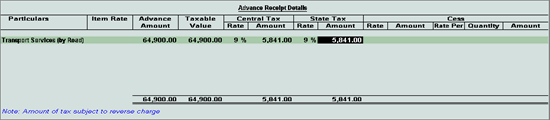
Based on the amount entered, the break-up of the GST
amount gets auto calculated for Central
Tax, State Tax,
and Cess, if applicable. The Advance Receipt Details screen appears
as shown below:
7. Press
Ctrl+A to accept the Advance
Receipt Details screen and return to the receipt voucher.
8. Select
the type of reference as Advance
and enter the reference details in the Bill-wise
Details screen.
9. Accept
the receipt voucher.
10. Click
P: Print. To print the State
Name, Code,
and Place of Supply in the voucher,
click F12: Configure and set the
options as given below:
● Print
State Name & State Code? to Yes.
● Print
Place of Supply? to Yes.
● Press Ctrl+A to accept.
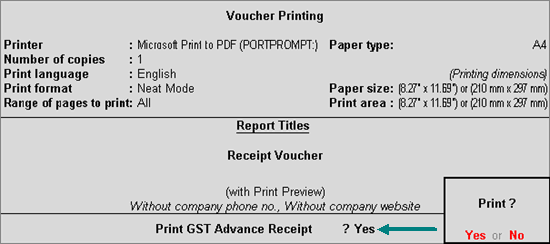
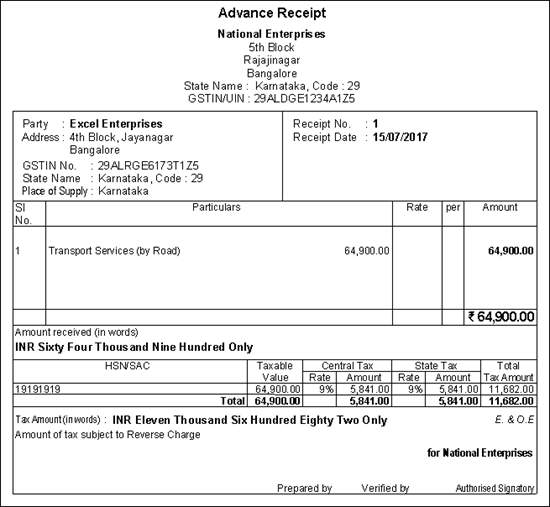
11. Set Print GST Advance Receipt? to Yes, as shown below:
12. Press
Enter to print.
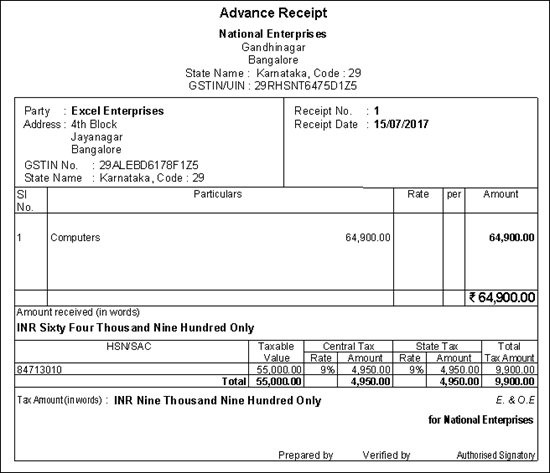
The printed receipt voucher with the GST details appears
as shown below:
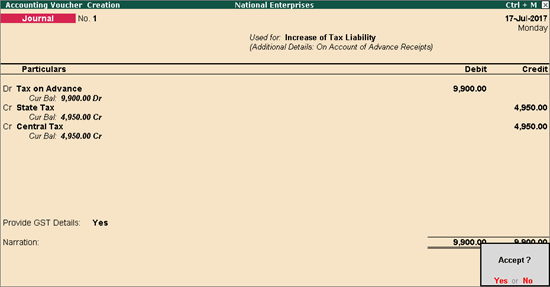
Journal voucher to raise the liability
To record a journal voucher to raise the liability
1. Go to
Gateway of Tally > Accounting
Vouchers > F7: Journal.
2. Click
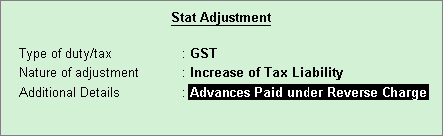
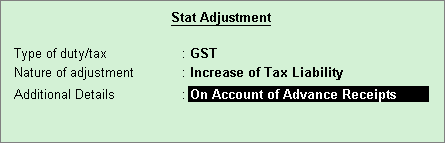
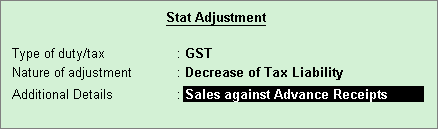
J: Stat Adjustment.
3. Select
the options as shown below:
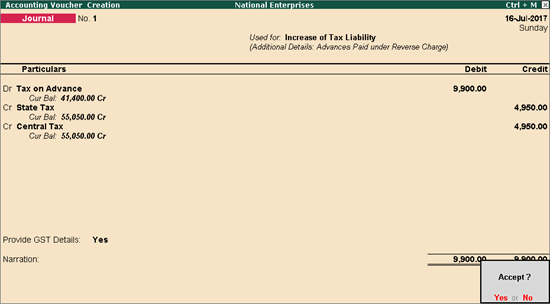
4. Debit
the expense ledger, or the ledger grouped under Current Assets.
5. Credit
the GST ledgers for the tax on advance receipt. Enter the tax Rate
and Taxable Value in the GST Details screen displayed for
each tax ledger.
6. Set the
option Provide GST Details? to
Yes.
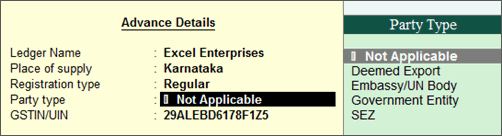
7. In the
Statutory Details screen, select
the party ledger.
Note: Place of
supply has to be entered. You need not provide the party details.
8. Press
Enter to save.
9. Press
Ctrl+A to accept the voucher.
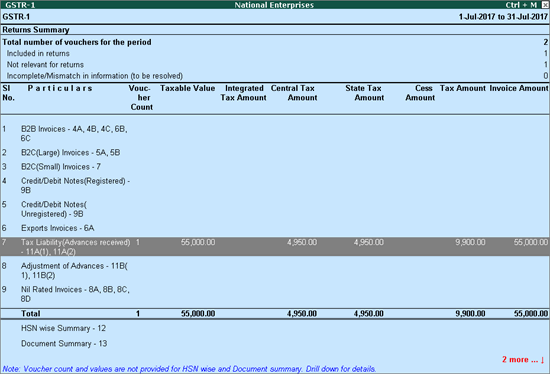
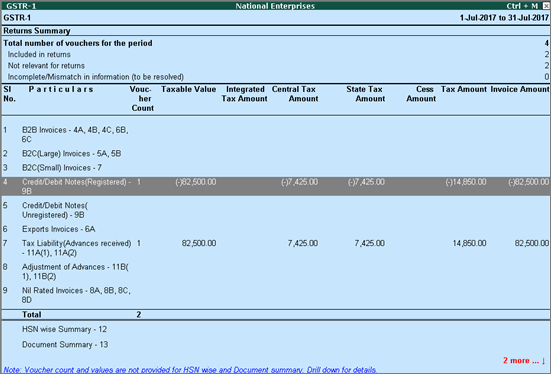
The tax liability raised on the advance amount appears
in GSTR-1, as shown
below:
Reversing the liability on advance receipt after sales
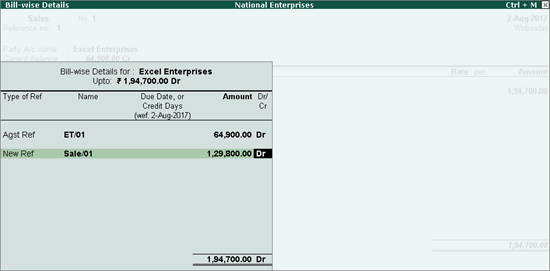
Sales invoice linked to an advance receipt voucher
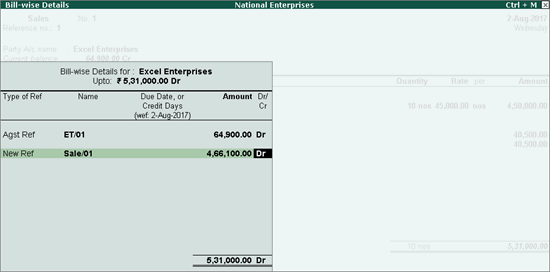
When the sales invoice is recorded, the receipt voucher
has to be linked to it by selecting the Type
of Ref as Agst Ref in the
Bill-wise Details screen of the
sales invoice.
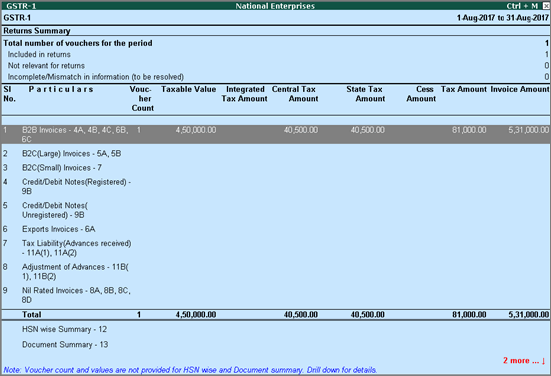
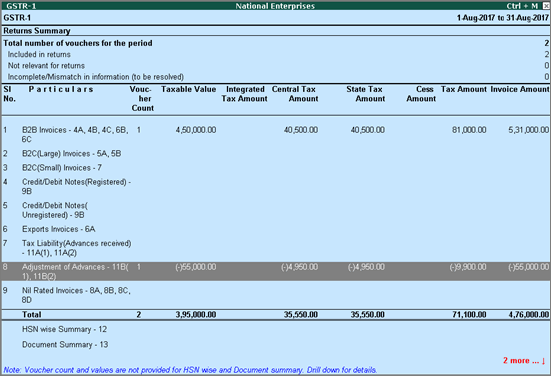
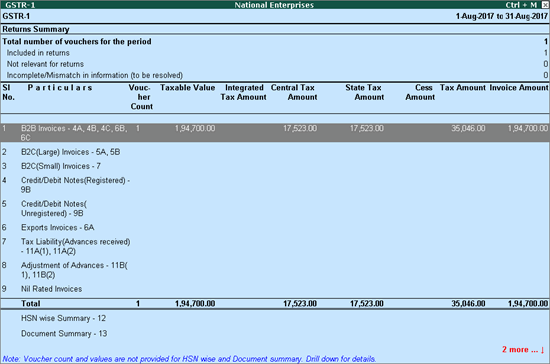
The GSTR-1
report displays the sales invoice, with tax on sales and advance amount
as shown below:
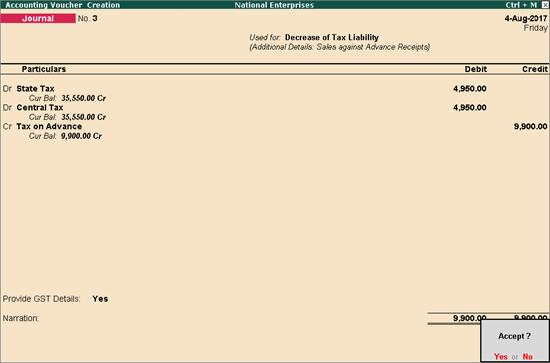
1. Go to
Gateway of Tally > Accounting
Vouchers > F7: Journal.
2. Click
J: Stat Adjustment.
3. Select
the options as shown below:
4. Debit
the GST ledgers, and enter the tax Rate
and Taxable Value in the GST Details screen displayed for
each tax ledger.
5. Credit
the expense ledger, or the ledger grouped under Current
Assets for tax on advance receipt.
6. Set the
option Provide GST Details to
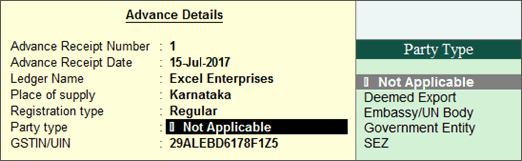
Yes. Enter the details of advance
receipt and select the party ledger.
The GSTR-1
report appears as shown below:
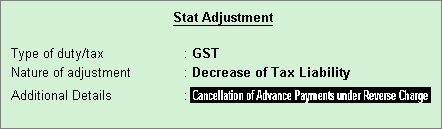
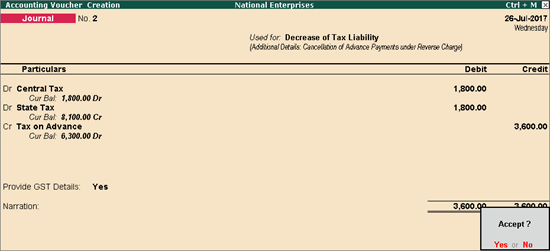
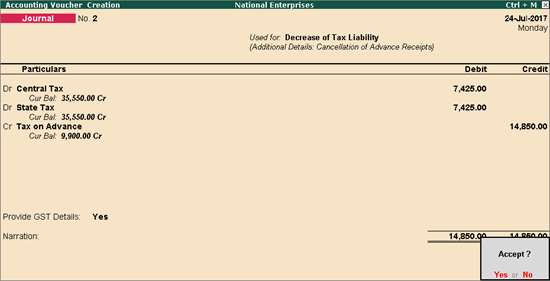
Reversal of GST on account of cancellation of advance receipt
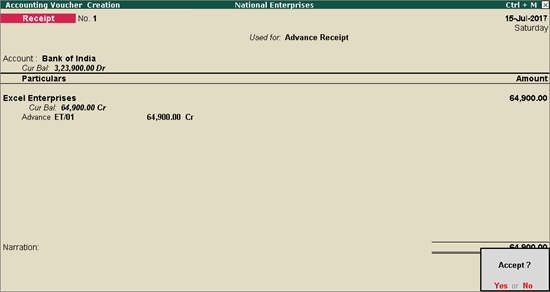
If an advance receipt voucher is recorded, a journal
voucher is recorded to raise the tax liability, and then the transaction
is cancelled partially or fully:
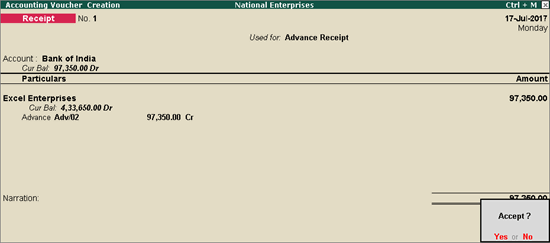
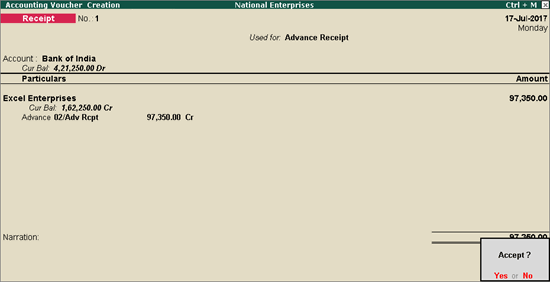
Record an advance receipt voucher as shown below:
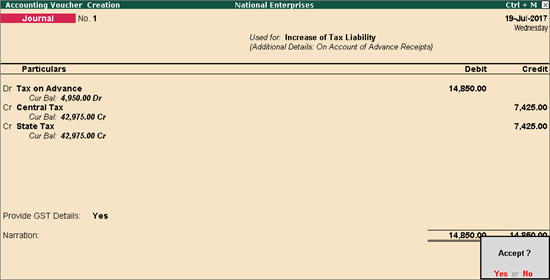
Record a journal voucher to raise the tax liability
as shown below:
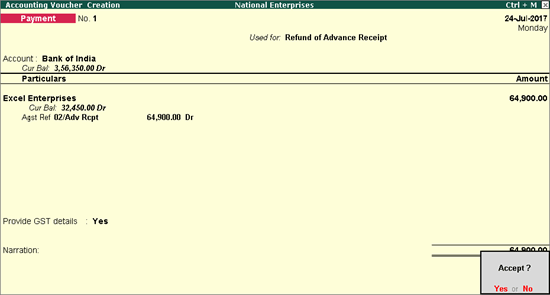
1. Go to
Gateway of Tally > Accounting
Vouchers > F5: Payment.
2. Click
F: Refund of Adv. Recvd.
3. Select
the bank Account.
4. Select
the party ledger. Ensure the bill-wise details is enabled in the ledger
master.
5. Click
F12: Configure > F12:
Advanced. Enable the option Show
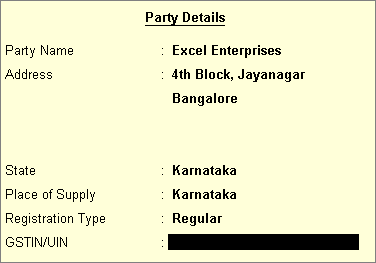
Party Details for GST? to view the Party
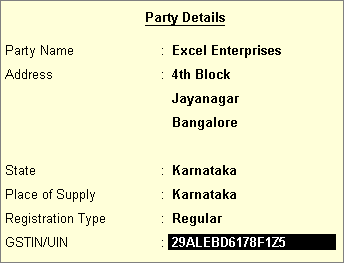
Details screen, and provide the relevant details.
6. In the
Refund Details section, the list
of stock items appears for selection. To select a ledger, click L: Show Ledgers. Click F12:
Configure and set the options:
● Allow
to provide rate of stock items? to Yes,
to enter/alter the slab rate of the stock item.
● Allow
to provide quantity for calculation of cess on quantity? to Yes, to enter the cess rate and
cess rate per unit.
● Allow
modification of tax details? to Yes,
to override GST and cess rates in the voucher.
7. Select
the stock item (goods enabled for GST) or ledger name (services enabled
for GST).
8. Enter
the Refund Amount,
which is inclusive of GST. The break-up of the GST amount gets auto calculated
for Central Tax, State
Tax, and Cess, if applicable.
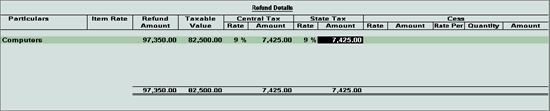
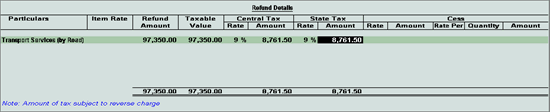
The Refund Details section appears
as shown below:
9. Press
Ctrl+A to accept and return to
the payment voucher.
10. Select
the type of reference as Agst Ref,
and select the reference details in the Bill-wise
Details screen.
11. Set Provide GST details? to Yes,
and enter the Receipt No. and
Date of the advance receipt.
12. Press
Enter to save.
13. Click
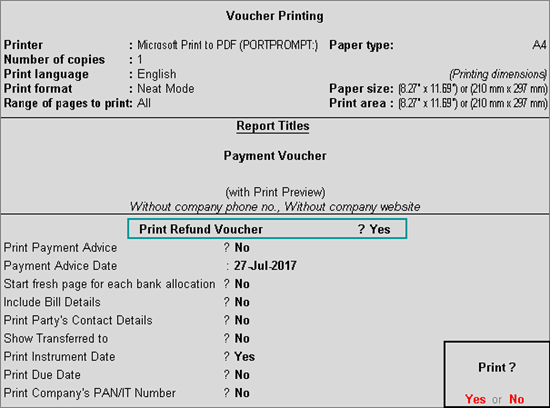
P: Print and set Print
Refund Voucher? to Yes,
as shown below:
14. Press
Enter to print.
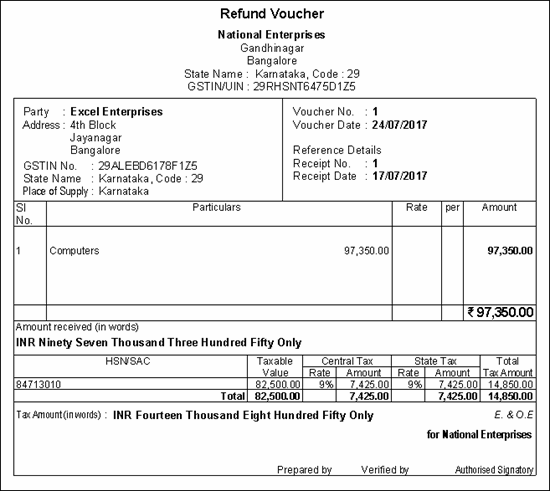
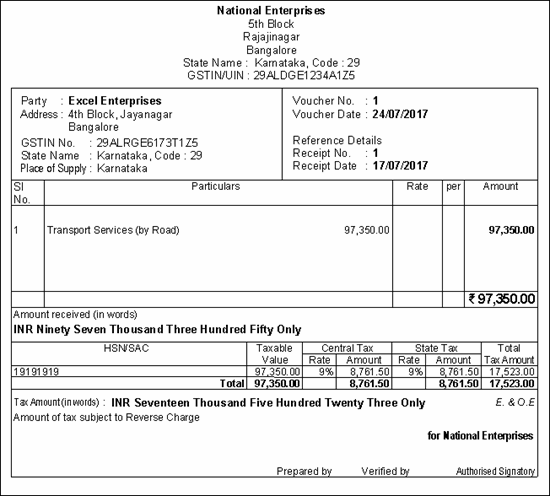
The printed refund voucher appears as shown below:
1. Go to
Gateway of Tally > Accounting
Vouchers > F7: Journal.
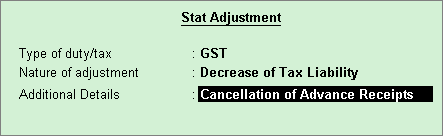
2. Select
the options as shown below:
3. Debit
the GST ledgers and credit the ledger grouped under Current
Assets.
4. Enable
the option Provide GST Details?
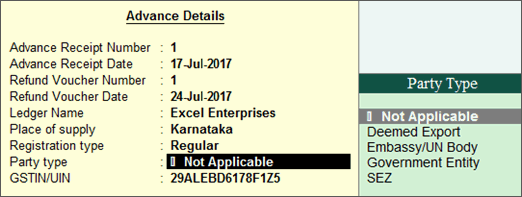
5. Enter
the details of the receipt voucher and refund voucher, and select the
party ledger as shown below:
Note: Place of
supply has to be entered. You need not provide the party details.
6. Press
Enter to save. The journal voucher
appears as shown below:
7. Press
Enter to save.
The GSTR-1
report appears as shown below:
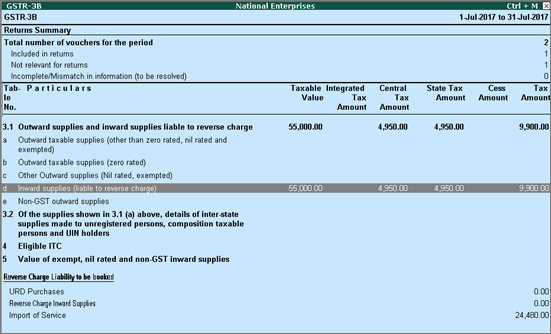
Transactions under Reverse Charge
Advance Receipt from Customer
To record a receipt voucher for advance received from
customer
1. Go to
Gateway of Tally > Accounting
Vouchers > F6: Receipt.
2. Click
V: Advance Receipt to mark the voucher
for advance receipt.
3. Account: Select the bank to which
the payment will be made.
4. Select
the party ledger. Ensure the bill-wise details is enabled in the ledger
master.
The Advance Receipt
Details screen appears with the list of stock items. To select
a ledger, click L: Show Ledgers. Click F12:
Configure and set the options:
● Allow
to provide rate of stock items? to Yes,
to enter/alter the slab rate of the stock item.
● Allow
to provide quantity for calculation of cess on quantity? to Yes, to enter the cess rate and
cess rate per unit.
● Allow
modification of tax details? to Yes,
to override the GST and cess rates in the voucher.
5. Select
the stock item (goods enabled for GST) or ledger (services enabled for
GST). Ensure the option Is reverse charge
applicable? is set to Yes
in the GST Details screen of stock
item or ledger master stock item if the party selected is a regular dealer.
6. Enter
the Advance Amount, which
is inclusive of GST. You can adjust this against the sales invoice
partially/fully, based on the sale value. At the end of the month, depending
on the balance amount of the advance available, you can record a journal
voucher to raise the liability.
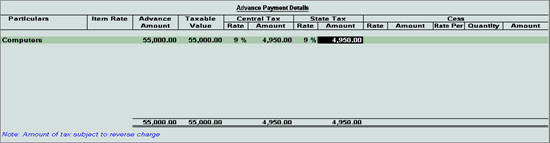
Based on the amount entered, the break-up of the GST
amount gets auto calculated for Central
Tax, State Tax,
and Cess, if applicable. The Advance Receipt Details screen appears
as shown below:
7. Press
Ctrl+A to accept the Advance
Receipt Details screen and return to the receipt voucher.
8. Select
the type of reference as Advance
and enter the reference details in the Bill-wise
Details screen.
9. Accept
the receipt voucher.
10. Click
P: Print. To print the State
Name, Code,
and Place of Supply in the voucher,
click F12: Configure and set the
options as given below:
● Print
State Name & State Code? to Yes.
● Print
Place of Supply? to Yes.
● Press Ctrl+A to accept.
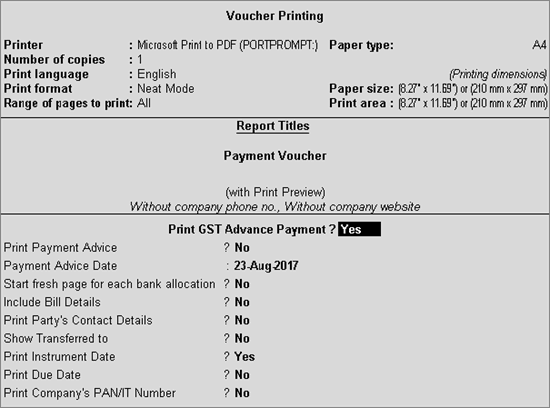
11. Set Print GST Advance Receipt? to Yes, as shown below:
12. Press
Enter to print.
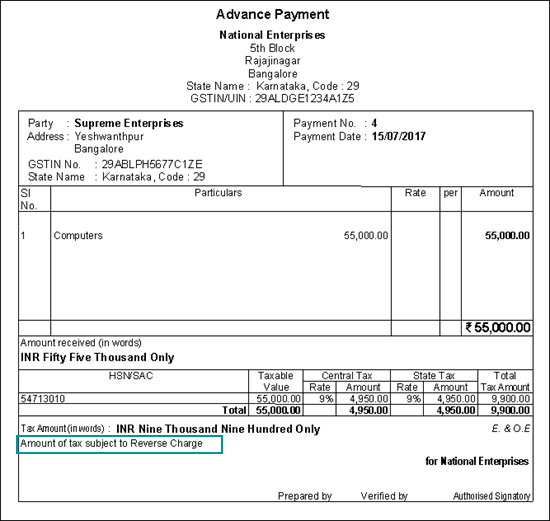
The printed receipt voucher with the GST details appears
as shown below:
Sales invoice linked to an advance receipt voucher
When the sales invoice is recorded, the receipt voucher
has to be linked to it by selecting the Type
of Ref as Agst Ref in the
Bill-wise Details screen of the
sales invoice.
The GSTR-1
report displays the sales invoice, with tax on sales and advance amount
as shown below:
Reversal of Advance Amount on Account of Cancellation
If an advance receipt voucher is recorded, record
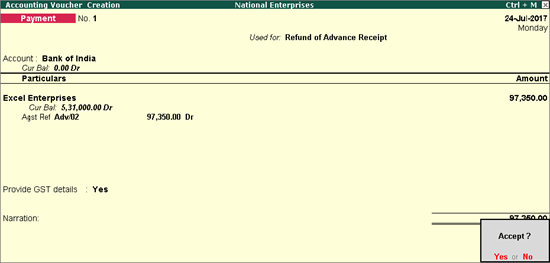
a refund voucher to return the advance amount.
Record an advance receipt voucher as shown below:
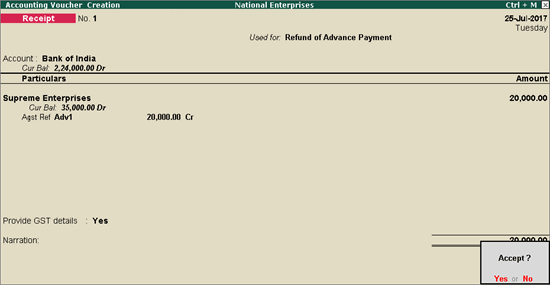
1. Go to
Gateway of Tally > Accounting
Vouchers > F5: Payment.
2. Click
F: Refund of Adv. Recvd.
3. Select
the bank Account.
4. Select
the party ledger. Ensure the bill-wise details is enabled in the ledger
master.
5. Click
F12: Configure > F12:
Advanced. Enable the option Show
Party Details for GST? to view the Party
Details screen, and provide the relevant details.
6. In the
Refund Details section, the list
of stock items appears for selection. To select a ledger, click L: Show Ledgers. Click F12:
Configure and set the options:
● Allow
to provide rate of stock items? to Yes,
to enter/alter the slab rate of the stock item.
● Allow
to provide quantity for calculation of cess on quantity? to Yes, to enter the cess rate and
cess rate per unit.
● Allow
modification of tax details? to Yes,
to override GST and cess rates in the voucher.
7. Select
the stock item (goods enabled for GST) or ledger name (services enabled
for GST).
8. Enter
the Refund Amount,
which is inclusive of GST. The break-up of the GST amount gets auto calculated
for Central Tax, State
Tax, and Cess, if applicable.
The Refund Details section appears
as shown below:
9. Press
Ctrl+A to accept and return to
the payment voucher.
10. Select
the type of reference as Agst Ref,
and select the reference details in the Bill-wise
Details screen.
11. Set Provide GST details? to Yes,
and enter the Receipt No. and
Date of the advance receipt.
12. Press
Enter to save.
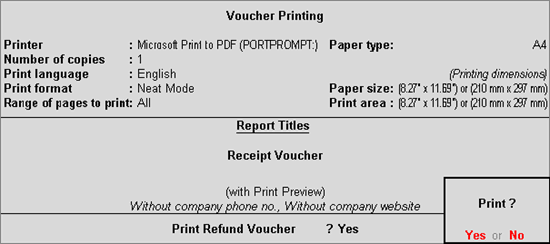
13. Click
P: Print and set Print
Refund Voucher? to Yes,
as shown below:
14. Press
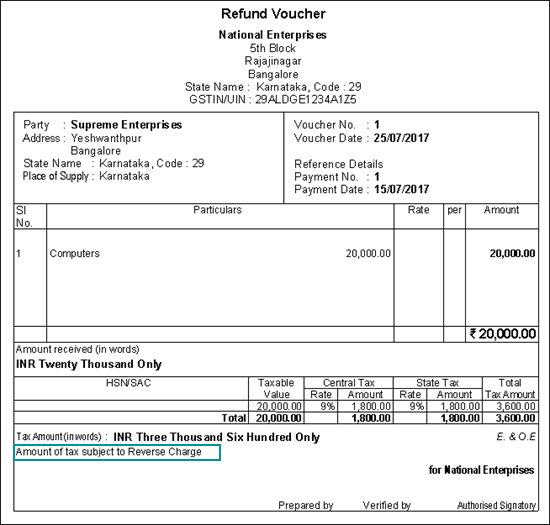
Enter to print.
The printed refund voucher appears as shown below:
Similarly, record the transactions for the journal
voucher adjustments given below:
● Increase
of Tax Liability > Advance
Receipts for Export/SEZ sales - Debit expenses/current assets ledger
and credit tax ledgers.
● Decrease
of Tax Liability > Cancellation
of Advance Receipts for Exports/SEZ sales - Debit tax ledgers and
credit expenses/current assets ledger.
● Decrease
of Tax Liability > Sales against
Advance Receipts for Export/SEZ sales - Debit tax ledgers and credit
expenses/current assets ledger.
Source :-https://help.tallysolutions.com/article/te9rel61/Tax_India/gst/gst_advance_receipts_from_customers.htm
If you are interested to being business partner with kindly contact on Whats App :- 9429893515
Note :- For any help related to any above services and products kindly mail us on customerhelp.gsg@gmail.com with above mention subject line
For any inquiry (Products & Services) kindly contact us on inquiry.gsg13@gmail.com with particular city code for more information click here.
Tally On Mobile - Mobile Tally Marketing App - Tally Mobile Business Management App

CLICK HERE TO DOWNLOAD
Customization in Tally.ERP9 - Mobile Tally - Tally Mobile Application
Customization in Tally.ERP9
1000+ Ready to use add-ons or customize your Tally on your own way.
- Sms Module
- Agent Module
- Security Features
- Contact Manager
- Inventory Report
- Auto Email
- Outstanding Followup
- Half Page Invoice
- Voucher Aurthorization
- Serial Member Search
- Textile Industries
- Ginig Mills
- Petrol Pumps
- Iron & Steel
- Mobile Application
Mobile Tally - Tally Mobile Application
DashboardDaily Sales Report
Daily Purchase Report
Cash & Bank
Stock Summary
Bills Receivable
Billy Payable
Fix Assets
Loans (Liability)
Today Daybook
Source :- tallyBIZ
Note :- Tally, Quickheal Antivirous, Education Software કે બીજા કોઈ સફ્ટવેર લેવા માટે
જુના કે નવા Laptop, Desktop Computer લેવા કે વેચવા માટે,
IT, CCTV, ને લગતી કોઈ પણ Products ( Switch, HDD, Ram, Cd, Pendrive) લેવા માટે
માત્ર Whats App કરો કોલ નહી Mo 9429893515, 7990449182, 8511604135, બેસ્ટ રેટ મલસે
Source
:-http://blogs.tallysolutions.com/gu/composition-to-regular-dealer-gst/
Download Tally.ERP 9 Release 6 (Gold) With GST Click Here
Link :- https://tallysolutions.com/download/
GST Knowledge in Gujarati Click Here
Link :- http://blogs.tallysolutions.com/gu/
GST Knowledge in English Click Here
Link :- http://blogs.tallysolutions.com/
GST Knowledge in Hindi Click Here
Link :- http://blogs.tallysolutions.com/hi/
Source :-Gayatri Solution Group
Note :- Tally, Quickheal Antivirous, Education Software કે બીજા કોઈ સફ્ટવેર લેવા માટે
જુના કે નવા Laptop, Desktop Computer લેવા કે વેચવા માટે,
IT, CCTV, ને લગતી કોઈ પણ Products ( Switch, HDD, Ram, Cd, Pendrive) લેવા માટે
માત્ર Whats App કરો કોલ નહી Mo 9429893515, 7990449182, 9558113500, 9099757281, 8511604135, બેસ્ટ રેટ મલસે
Products :- Quick Heal Antivirous, Tally, GST, CPU,
Motherboard, RAM, HDD, LCD – LED, Keyboard, Mouse, DVD Writer, SMPS,
Speaker, Battery, Adapter, Cooling Pad, Screen Guard, Bag, Internet
Dongles, Blank CD – DVD, Pen drive, Web Camera, Microphone, Headphone,
External CD Drive, Cables, Projector, Scanner, Printer, Education CD -
DVD etc…
More Products List Click Here
More Products List Click Here
Note :- Purchase any products just email inquiry.gsg13@gmail.com
Published By :-
Gayatri Solution Group
Email :- inquiry.gsg13@gmail.com